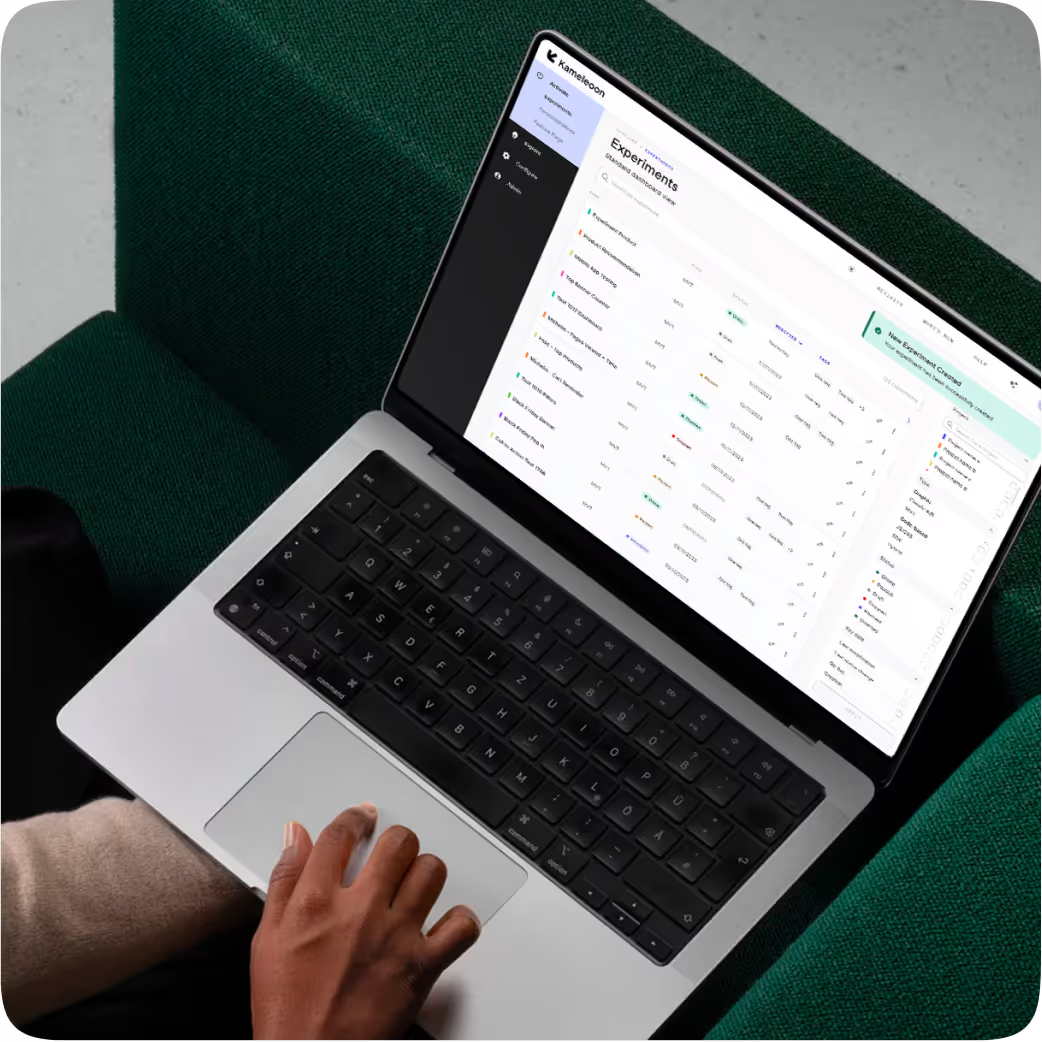
Copy your PBX variations into Figma as editable layers

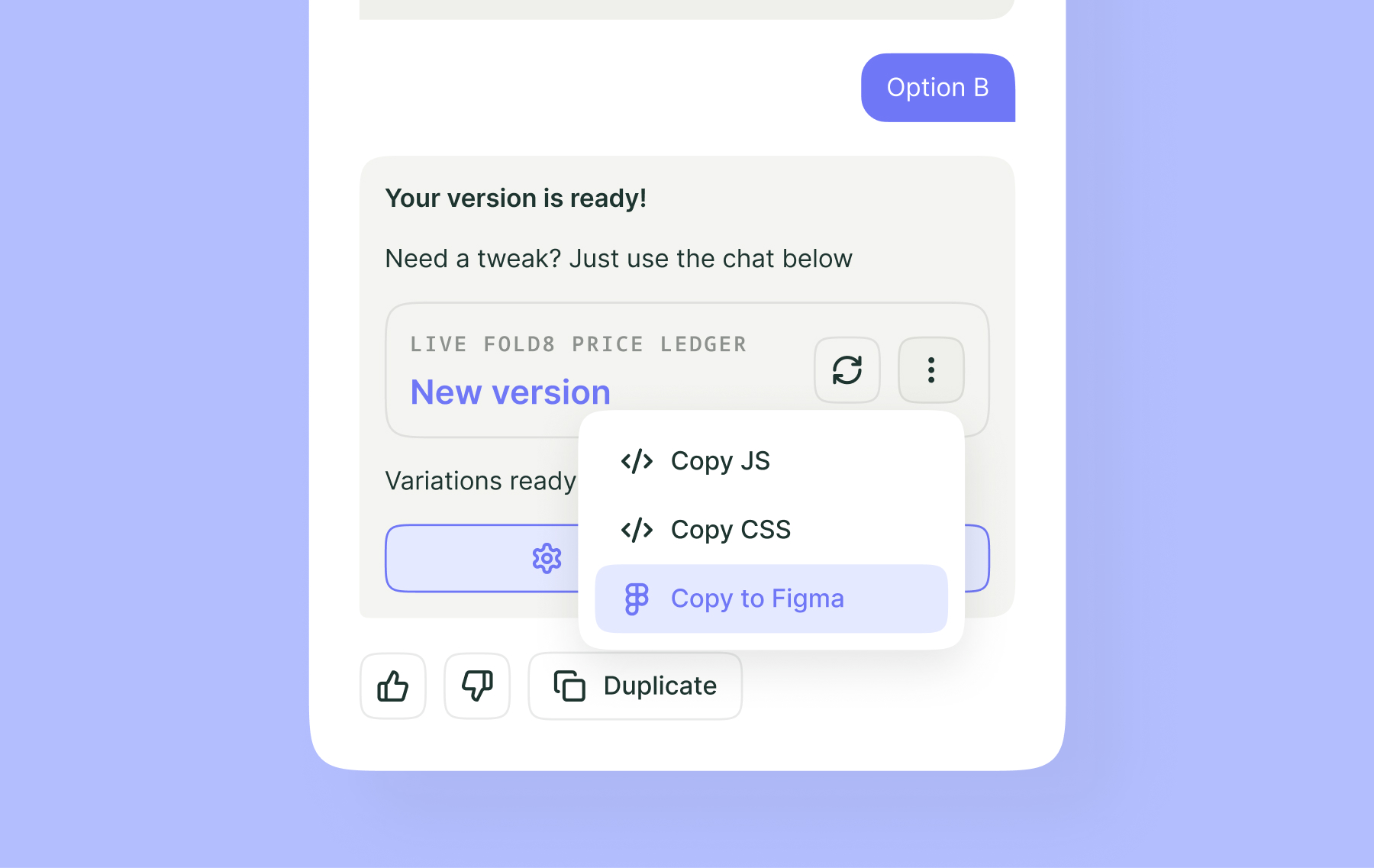
Create variations with PBX and copy them straight into Figma. When a test wins, your devs already have the exact specs to ship it faster.
With the new Copy to Figma feature in PBX Build, you can copy any variation created with PBX and paste it into Figma as editable layers.
Your team can pick up right where they left off, working directly in the design environment they already use, whether in text, spacing, or styles.
This new feature strengthens the connection between PBX and Figma. Start with a Figma design, turn it into a variation with PBX, test it on your website, then bring the results back into Figma to keep refining your design. When a variation wins, your dev team already has everything they need to push it to production.
From idea to experiment, and from results back to design, your teams can keep work moving.
How to copy a PBX variation to Figma
It only takes a few clicks to bring your variation into Figma.
1. Select your variation in PBX
Once PBX Build has generated your variation, you'll see the "Your version is ready" message.
Open the three-dot menu and select Copy to Figma.
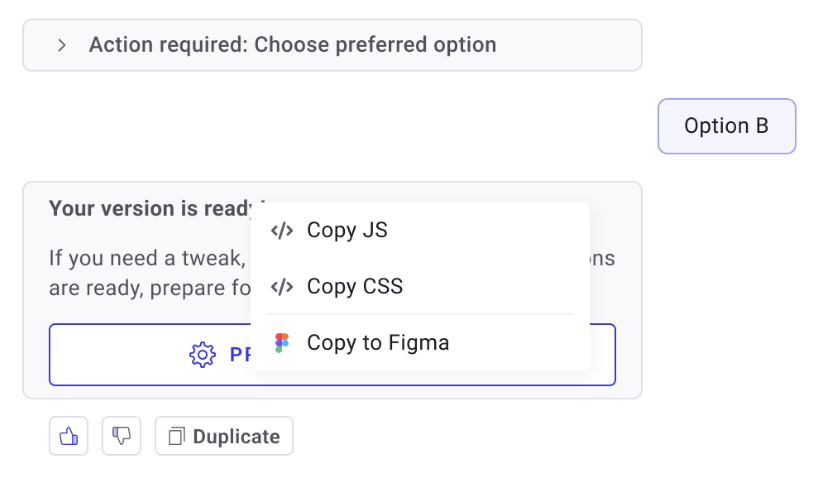
You can also access this feature from the Experiments dashboard in Kameleoon. Open the menu for your experiment, select Copy to Figma, and choose the variation you want to export.
2. Copy your design
PBX automatically prepares your variation for Figma. Once it's ready, click Copy Design.
3. Paste your variation into Figma
Open your Figma file and paste your design using ⌘ + V on Mac or Ctrl + V on Windows.
Your variation appears as standard, editable Figma layers. You can update text, adjust spacing, refine styles, or incorporate elements into your existing components.
No plugins to install. No additional accounts to connect.
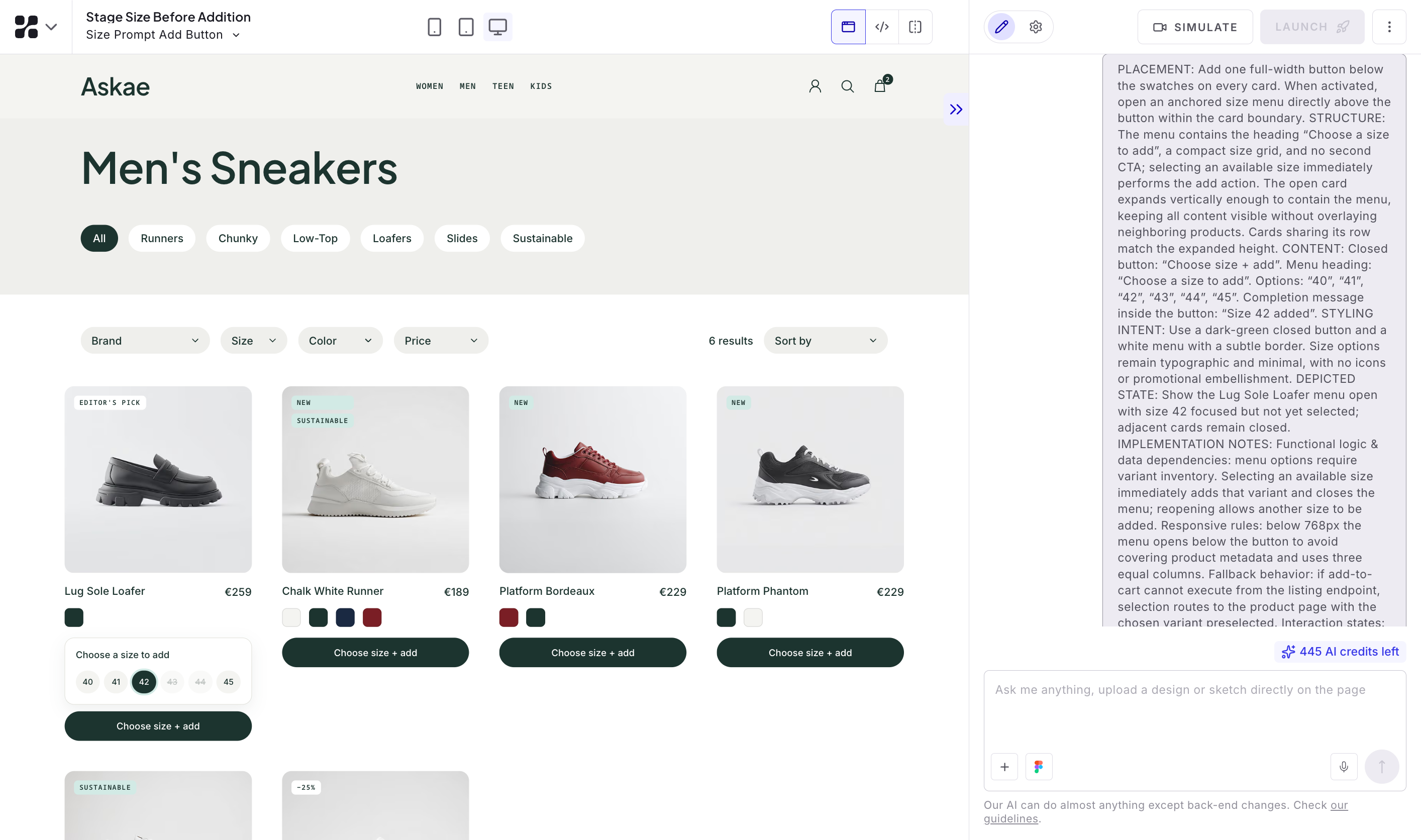
Turn winning experiments into your new design baseline
Every experiment is an opportunity to improve the user experience. With Copy to Figma, your test results can also directly inform and improve your design files.
Let's say you want to test a new placement for the size guide on a product page. Using PBX, you create a variation that moves the guide directly into the buy box, then launch your experiment.
The variation wins.
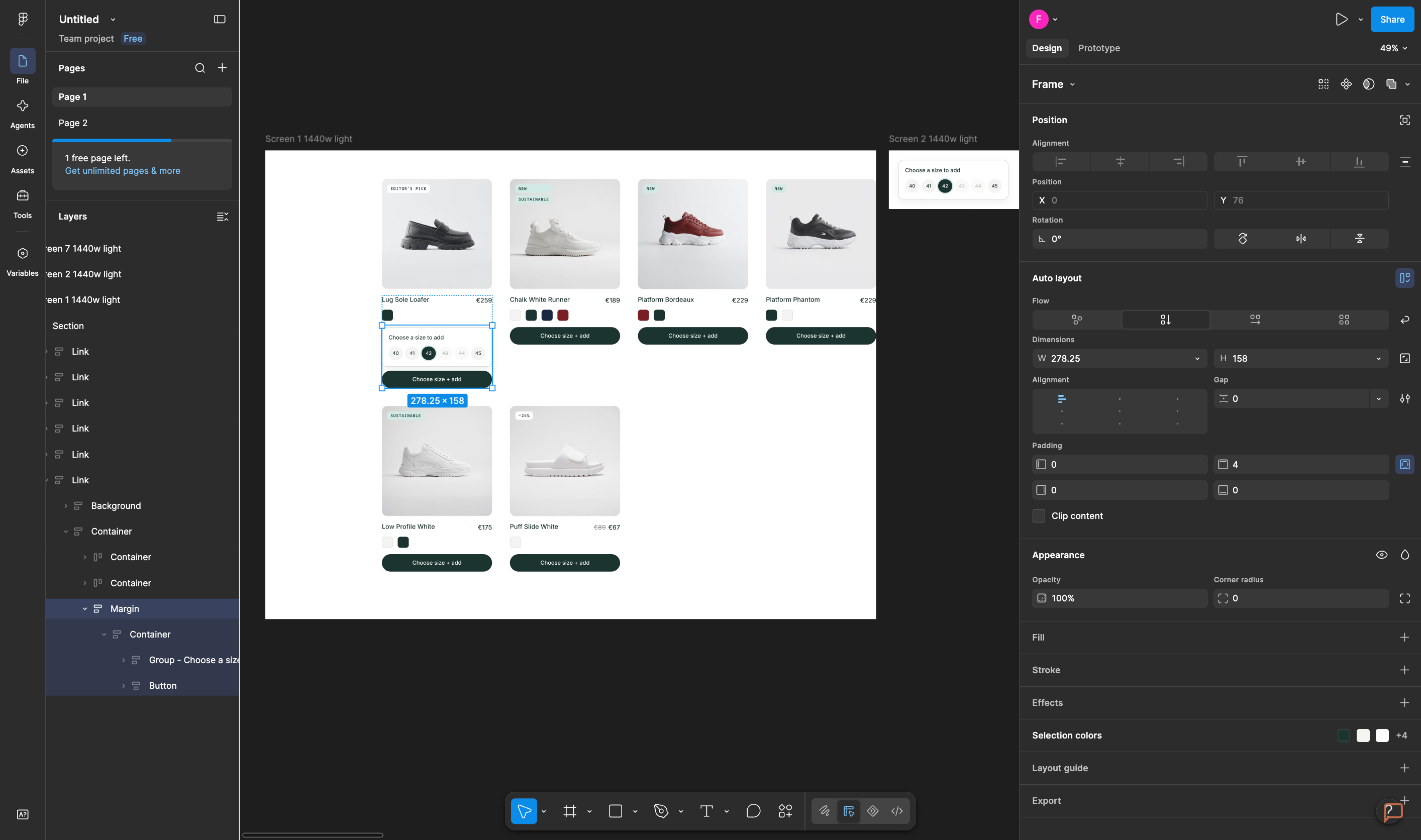
Your team can now copy that winning variation from PBX and paste it directly into the product page's Figma file. Your designer has everything they need to update the design and refine the relevant components. From there, your developers work from the same file and take the update live.
Your designs now reflect improvements validated through experimentation, giving future iterations a stronger starting point.
Another benefit? Designers can access and copy variations directly from the Experiments dashboard without having to go through the CRO team.
Go from idea to prototype, then refine it in Figma
Copy to Figma isn't just for winning variations. You can also export a variation you're still working on, even if you don't plan to launch it as an experiment.
Have an idea for improving a page on your website?
Simply describe it in a prompt. PBX Build generates an initial version directly on your page, taking its context into account.
You can then copy that concept into Figma and keep working on it with your team, whether you're fine-tuning the design, exploring different directions, or preparing a new mockup.
It's a new way to quickly turn ideas into tangible prototypes, without waiting for a fully polished design.
For marketing and product teams, it's also an easy way to bring ideas to life and share something concrete with designers, who can then refine them in their familiar workspace.
Make collaboration easier across CRO, design, and development teams
With Copy to Figma, variations created in PBX fit naturally into your teams' existing workflows:
- CRO teams can easily share experiments and winning variations as editable designs.
- Designers can bring those variations into Figma, refine them, and incorporate them into their design files and design systems.
- Developers get a clear, up-to-date visual reference directly in the Figma files they already use every day.
Another way to go live faster after a test is with PBX Ship. It hands winning variations straight to your developers through Kameleoon’s MCP server, so they can add them to production faster.
Smoother collaboration across teams, from experimentation to production.
A few things to keep in mind
Copy to Figma works best with simple, mostly static variations. If your variation includes a lot of interactive elements, some adjustments may be needed once it's in Figma.
PBX only copies the elements of the page it created. To keep the rest of the page in context, simply paste your variation into a Figma file that already contains the corresponding page design.
Give your PBX variations a new life
An idea generated in PBX can become a prototype in Figma. A winning variation can help improve your design system. And your teams can keep collaborating on the same improvements, from experimentation all the way to production.
With Copy to Figma, your variations become designs you can reuse, refine, and build on.
Ready to try it? Explore Copy to Figma in PBX Build.
To learn more, check out our documentation, reach out to your CSM, or request a demo.
.jpg)